
A lot can happen in 31 months. I first wrote about this on February the 4th 2023: Battle of the design tools – Canva vs Microsoft Designer. I’ve been using both tools since and one of them has come an extremely long way. But how do they stack up today?
I’m not going to go through an extensive review in this post. This whole area is a beast that should be eaten in chunks.
I’ll touch on one aspect that I used both tools for and say which one performed better.
First some general comments. And a caveat: I’m not a designer. So I don’t design and use design tools every day. But I do believe in the use of design to communicate more effectively. So I design as a layman – understand this review on those terms. Also, disclosure.
AI happened
In all the intervening time since my first post of course AI has happened. There was some at play early on but it was far from polished. If you read my first post you’ll see what I mean. Also, the tools have changed fundamentally since then, especially Microsoft.
Take a look at the difference in the two interfaces below and compare to what I showed in my earlier post if you want. This is also a good view on what you get as you start. You can see pretty similar approaches. Note you can scroll left or right of the images using the toggle in the middle.
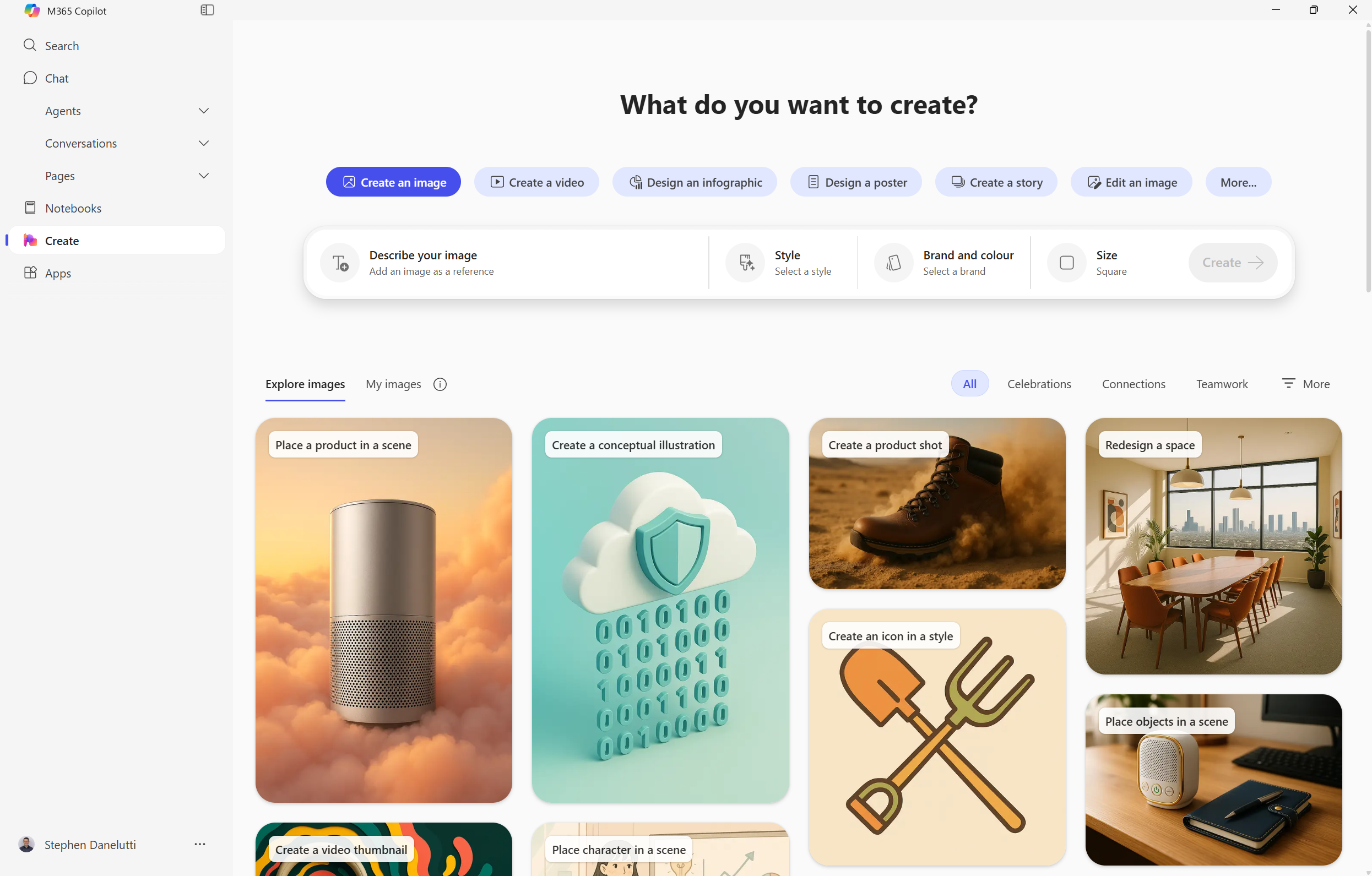
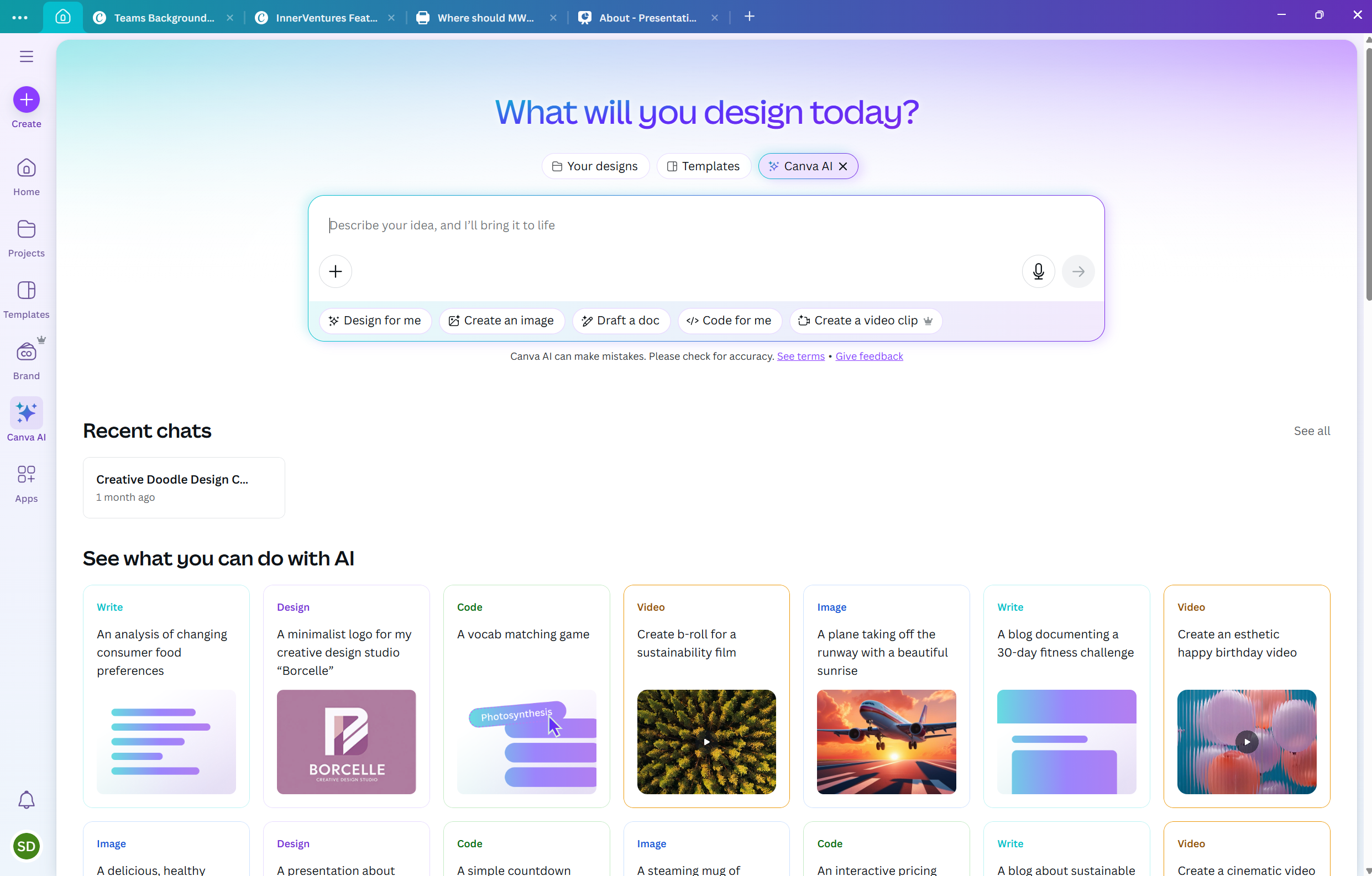
Note also that these versions that you see are both for paid versions with added features.
The other big change from Microsoft is that they have embedded a lot of what I first showed in Designer, into the Microsoft 365 App, alongside many of the other AI tools from Microsoft. Not that Designer doesn’t continue to exist standalone – it does: Microsoft Designer – Stunning designs in a flash.
Since I spend my life in the App, using AI with web or my work data or with Agents and many of the other functions you see, it’s very cool to have the Create function right there in the left side bar. I asked Copilot to show the differences, and here they are:
| Feature | Microsoft Designer | Create in M365 App |
|---|---|---|
| Target Audience | Consumers (personal accounts) | Commercial users (enterprise) |
| Access | Web app (designer.microsoft.com) | Integrated in M365 Copilot App |
| Content Types | Visuals (images, cards, collages) | Visuals + text, video, surveys |
| AI Capabilities | DALL·E-powered image generation | Copilot-powered multi-format creation |
| Integration | Limited to select apps | Deep integration across M365 ecosystem |
| Branding Tools | Basic templates | Brand kits, org templates, prompt templates |
To end this section I would say that Canva is still richer in overall capabilities but that is because it is a dedicated design tool that has existed for a long time. I probably only use 20-30 % of it’s capabilities but as mentioned I’m not a designer who spends his life in these tools.
On the other hand, Create in the M365 App provides access to a huge array of options within the M365 suite, i.e. the ability to create PowerPoint decks, Word docs, etc. Plus all the other AI features from Copilot I mentioned earlier.
It’s interesting that Microsoft has moved into the design space and Canva has moved into the workplace productivity space in the intervening years but that’s for another post.
Creating an image
So aside from all of the features you get from either tool, I have chosen to just demo the capabilities and differences between the two when creating an image.
For example, an image I want to use on my website and newsletter or the featured image for this post. Something really simple but I am rather particular about what I use.
I used the AI design creation options in both cases although this is not the only option. You can create images using a vast library of stock images in Canva’s case.
Here are the two prompts I used for both tools to get different results shown below:
Create a really minimalist doodle of a man sitting at a desk with a laptop. Stick with the doodle style throughout. A mass of confusing facts and social media input is streaming into his head. From the laptop, a steady flow of digestible wisdom nuggets then flow out into a website and email newsletter. Contain the streams into his head and out from the laptop funnel so the background is kept clean.
This prompt above was used to create the image I used on my home page. It came from Create although I had to manually remove the background. The first two screenshots in the gallery below show the results on the left from Create and on the right from Canva. It includes variations based on additional prompt tweaks.
The prompt below is what I used for the featured image in this post that came from Canva and the alternative from Create is on the left.
Create a landscape image showing two design tools going head to head in pitched battle
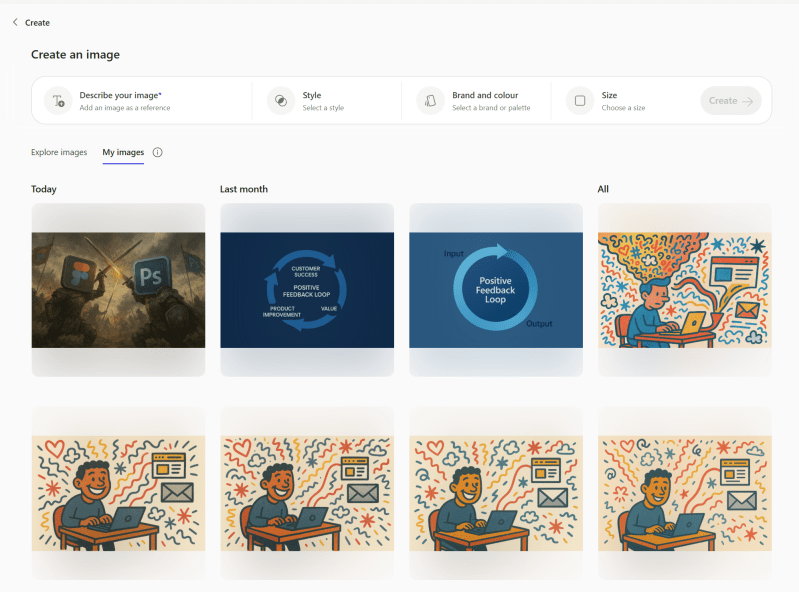
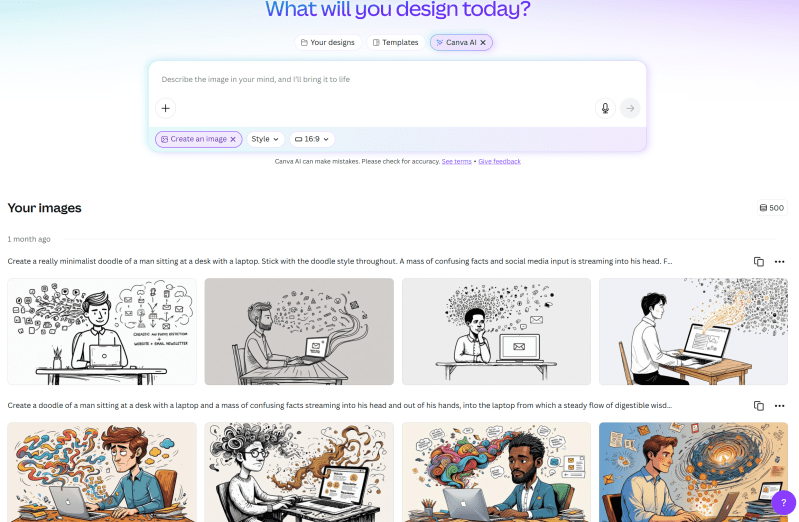
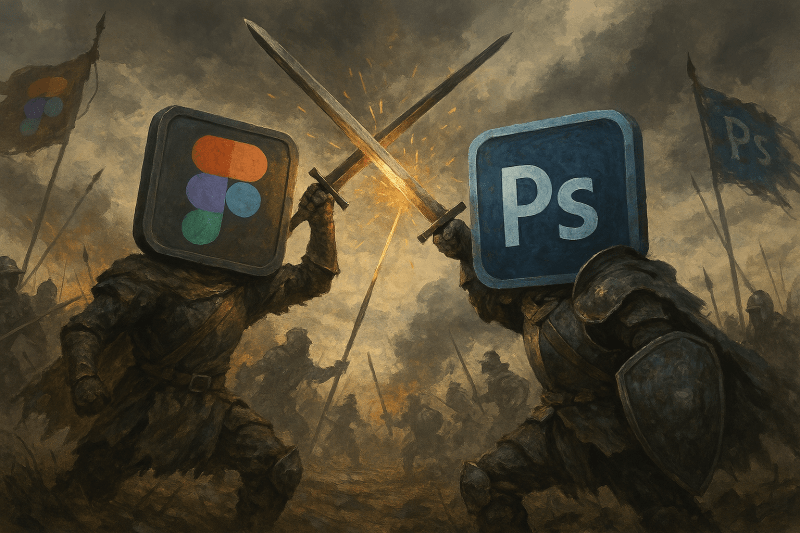

Create in the M365 App was much slower to produce one image (the one with logo’s) whereas Canva produced several options, faster. Of course, I could request alternatives from Create but it’s always nice to have options immediately.
Funny thing about the logo’s, where Figma and Photoshop are the obvious protagonists. I thought that might have been subject to copyright infringements and so prevented but it appears not to be the case.
Overall, I’m most impressed with how far Microsoft’s product has come. It has made the most progress in all the time since my last review.
I’m not giving up on Canva just yet, I still use it more. But that might just be force of habit and knowing the tool so well. It remains to be seen in round three whether that will have changed as I use Create/Designer more.

 InnerVentures
Leave a Reply